



Living guide · updated over time
The Complete Shopify Website Development Guide
For freelancers and business owners — from account setup and admin configuration to products, payments, taxes, themes, apps, and Liquid.
PART 1 — Getting Started on Shopify
Before you build a single page, you need to understand the two very different paths into Shopify — one for the person who owns the business, and one for the freelancer or agency who builds for others. Getting this wrong from the start costs time and money.
1.1 Freelancer vs. Business Owner: Two Different Account Paths
The Business Owner Path
If you are the business owner, the path is simple. Head to shopify.com and sign up directly. You create a store under your own email, own the billing, and manage everything in one place. Shopify offers a free trial period to get started before any monthly fee kicks in.
The Freelancer / Agency Path — Shopify Partners
If you are a freelancer or agency building stores for clients, do not sign up as a regular store owner. Instead, create a Shopify Partner account at partners.shopify.com. This is a free account designed precisely for people who build and manage multiple stores on behalf of clients.
Why the Partner account matters:
You get one dashboard to oversee every client store you manage.
You can create unlimited development stores for free — no monthly fees, no time limits.
It looks more professional to clients and signals you are a serious operator.
You earn a revenue share when clients upgrade to a paid plan through your referral.
Access to Shopify Academy resources, betas, and partner-only tools.
PART 2 — Understanding the Shopify Dashboard
Once inside the admin, the left navigation is your control centre. It looks like a lot at first glance, but the mental model is simple: the top section handles day-to-day operations (orders, products, customers), while the bottom section handles channels and configuration.
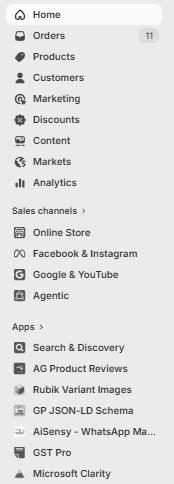
2.1 Core Navigation Areas Explained
Orders
Every purchase made by a customer lands here. You can fulfil orders, issue refunds, print packing slips, and track order status. The number badge on Orders shows pending fulfilments at a glance.
Products
This is where your entire catalogue lives. Each product has its own detailed listing page — this section is so critical it gets its own dedicated chapter (Part 3).
Customers
Shopify automatically builds a customer database from every order. You can view purchase history, segment customers, and add tags for marketing purposes.
Marketing
Shopify has a basic built-in marketing section for campaigns and automations. For serious marketing, most stores rely on third-party apps or platforms integrated here.
Discounts
This is where all promotions are created and managed. There are two types:
Automatic Discounts — apply at checkout automatically when conditions are met (minimum cart value, specific products, etc.). No code required from the customer.
Discount Codes — a customer must enter a specific code at checkout to activate the discount. Useful for email campaigns, influencer partnerships, and abandoned cart recovery.
Discounts can be configured as percentage off, fixed amount off, free shipping, or buy-X-get-Y. You can also limit usage (e.g. one use per customer, or a total cap of 100 uses).
Content (Formerly 'Online Store' Pages)
Inside Content you will find:
Pages — Static pages for your store (About Us, Contact, FAQ, Return Policy, etc.).
Blog Posts — For content marketing.
Navigation — Manage your header and footer menus.
Files — Upload media assets like PDFs or downloadable files.
Markets
Shopify Markets allows you to sell in multiple countries with different currencies, languages, and pricing rules — all from one store. This is relevant once you scale internationally.
Analytics
Shopify provides built-in reporting: sales by channel, top products, conversion rate, sessions, and customer geography. For deeper analytics, most serious stores connect Google Analytics 4.
PART 3 — Product Listings: The Foundation of Your Store
A product listing is not just a data entry task. It is the single most important sales asset on your store. Every field, every image, and every word has a role. This section covers how to approach each component strategically.
3.1 Product Title — Your First Impression and an SEO Signal
Most stores make the mistake of using a generic product name as the title. The title is the first thing a customer sees in search results, on collection pages, and at the top of the product page. It must work hard in a small amount of space.
The Title Strategy
A strong product title for an e-commerce store follows this formula:
Demand-Driving Feature
Ultra-Absorbent Microfiber
Result: "500 GSM Ultra-Absorbent Microfiber Towel by YourBrand" — this title immediately tells a buyer the weight (a key quality signal for towels), the primary reason someone buys this product, and who makes it. Keep titles clean and avoid fluff words.
3.2 Product Description — For the Deep Diver
The description is for the customer who wants more. They are interested — they clicked the product — and now they want to be convinced. Structure your description in layers:
Open with the transformation or outcome — what does the customer's life look like after owning this product?
List key features and benefits in short, scannable points. Pair each feature with its direct benefit (e.g. '500 GSM weight — dries 3x faster than standard cotton').
Include technical specifications: dimensions, materials, certifications, weight, pack size.
Address common objections proactively (e.g. 'Will it leave lint? No — the microfiber weave is lint-free').
End with a care or usage guide if applicable.
3.3 Pricing and Inventory
Price — The selling price the customer sees.
Compare at Price — Enter the original or higher price here to show a strikethrough. Shopify will automatically display this as a discount.
Cost per item — Your COGS (cost of goods sold). Shopify uses this to calculate profit margins in your reports. Not shown to customers.
SKU (Stock Keeping Unit) — A unique identifier for the product. Use a consistent naming system across your catalogue.
Barcode — Add if you use physical barcode scanning in fulfilment.
Track quantity — Enable to manage stock levels. Shopify will warn you when inventory is low.
Continue selling when out of stock — Decide whether customers can order even if stock hits zero (common for pre-order strategies or made-to-order products).
Shipping Weight
Always fill in the product weight. This is used for calculated shipping rates and is critical if you use any weight-based shipping rule. Incorrect weights lead to undercharging on shipping and margin loss.
If your product comes in multiple sizes, colours, or configurations, Shopify lets you create variants. Each variant can have its own price, SKU, inventory level, and image. Set this up properly from the start — retrofitting variants into an existing product is painful.
3.4 Product Images — The Visual Sales Strategy
For most buyers, images drive the purchase decision more than the description. For physical products especially, the image format below is the recommended base structure for maximum conversion impact:
Clean product shot on a white or neutral background. This is the primary image customers see in collection grids and search results. Professional lighting, no clutter.
Lifestyle or infographic image that visually communicates your single most important unique selling point. Text overlays showing the key feature work well here.
A second USP — focus on a different benefit. Rotate between size/dimensions, material quality, certifications, or a before/after comparison.
A brand-building lifestyle image that shows the product in use in an aspirational context. Establishes brand identity and emotional connection.
Testimonial / Social Proof Image
An image that shows customer reviews, star ratings, press mentions, or user-generated content. Builds trust at the critical decision point.
3.5 Product SEO — The Meta Content Section
Scroll to the very bottom of any product listing page in Shopify and you will find the 'Search engine listing preview' section. This is arguably the most important SEO element on the entire page. These three fields directly determine how your product appears in Google search results.
Meta Title
This is the blue clickable headline shown in Google search results. It should be between 50–60 characters to avoid truncation. Include your primary keyword naturally. It does not need to be identical to your product title, but should be closely related.
Meta Description
This is the grey text shown below the title in search results. Keep it between 140–160 characters. This does not directly affect rankings, but it dramatically affects click-through rate. Write it to compel a click, not to list keywords. Think of it as a one-line sales pitch.
URL Handle
This is the slug at the end of your product URL (e.g., /products/500-gsm-microfiber-towel). Keep it short, clean, and keyword-rich. Remove stop words like 'and', 'the', 'a'. Use hyphens, not underscores. Once a product is live and indexed, changing the URL handle breaks existing links unless you set up a redirect.
PART 5 — Shopify Settings: The Full Configuration Walkthrough
Settings is where your store's operational infrastructure lives. Most of these are set once and rarely touched, but getting them right from the beginning prevents serious problems later.
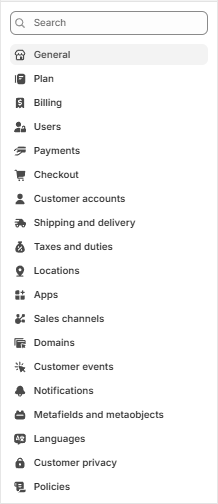
5.1 General Settings
Your store name, timezone, currency, weight units, and order ID prefix are all set here. Make sure:
Your store currency matches the market you are primarily selling in.
Your timezone is correct — this affects order timestamps and report date ranges.
Your store contact email is one you actively monitor — this is where Shopify sends critical alerts.
5.2 Payments — Setting Up How You Get Paid
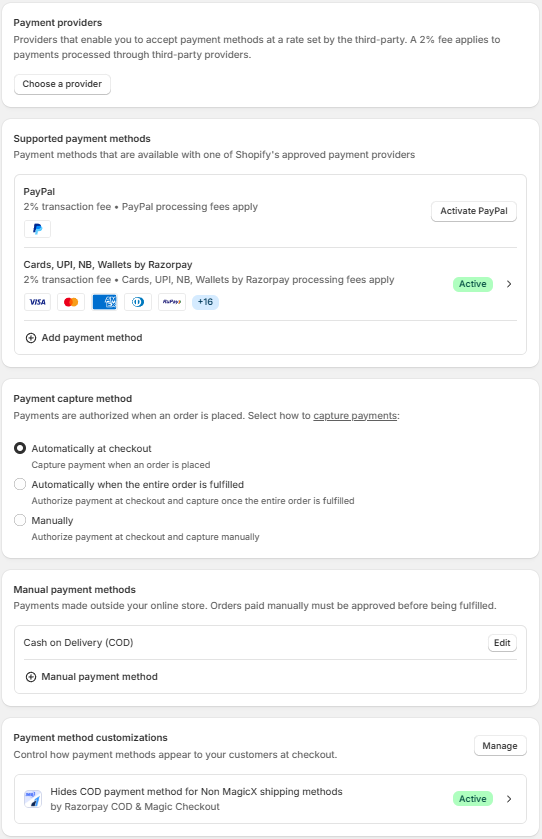
The Payments settings page is where you configure every method by which customers can pay. Shopify organises payments into four categories:
Shopify Payments (Where Available)
In markets where Shopify Payments is available (US, UK, Australia, Canada, and others), this is the first-party payment processor built directly into Shopify. It eliminates the additional transaction fees that apply to third-party processors and provides seamless checkout. As of now, Shopify Payments is not available in India.
Third-Party Payment Providers
For markets like India, third-party payment aggregators handle all payment processing. Shopify charges a 2% transaction fee on orders processed through any third-party provider. The most common integrations in India:
Razorpay — The dominant payment gateway in India. Supports Cards, UPI, Net Banking, Wallets, and EMI. Integration is nearly one-click: register on Razorpay, go to your Razorpay dashboard, find the Shopify integration, and it walks you through installation step by step. The Razorpay app also handles COD configuration and payment link features.
PayU — Another major Indian gateway with similar capabilities.
Cashfree — Popular for its fast settlement times and competitive pricing.
PayPal — Necessary if you sell internationally, particularly to customers in the US and Europe who prefer PayPal.
5.3 Shipping and Delivery — Your Fulfilment Infrastructure
Shipping settings define how much customers pay for delivery and how orders are dispatched. This section requires careful thought because errors here directly affect your margins and customer experience.
Shipping Zones and Rates
A Shipping Zone is a geographic area (e.g., 'India Domestic', 'Rest of World'). Within each zone, you define shipping rates. Rate types include:
Free Shipping — Always free, or free above a cart value threshold (e.g., free shipping on orders above ₹500).
Flat Rate — A fixed price regardless of order weight or value.
Weight-based Rates — Price varies based on the total weight of the cart. Requires accurate product weights.
Price-based Rates — Price varies based on cart value (e.g., ₹50 for orders under ₹300, ₹30 for ₹300–₹999).
Calculated Rates — Rates fetched in real-time from a carrier (DHL, FedEx, etc.) based on actual package dimensions and destination. Requires a shipping carrier account.
COD (Cash on Delivery) Charges
If you offer COD, it is standard practice to add a COD handling fee on top of the regular shipping rate. This is configured as a rate condition within your India Domestic zone. For example: 'Add ₹40 COD handling fee when payment method is COD.' This is managed through COD-specific apps like Razorpay COD.
Shipping Profiles
Shopify allows you to create multiple Shipping Profiles for different product types. For instance, a fragile product might have higher shipping rates than a lightweight apparel item. Products not assigned to a custom profile fall under the General shipping profile.
Local Delivery and Pickup
If you have a physical store or operate in a single city, you can configure local delivery zones with flat rates and pickup from a specific location. This is managed under 'Local delivery' and 'Local pickup' within Shipping settings.
Fulfillment Services and 3PL Integration
If you use a third-party logistics provider (3PL) like Shiprocket, Delhivery, or Ecom Express, these are connected through their respective Shopify apps. Once installed, the 3PL app can auto-sync orders, generate AWB numbers, and update tracking information directly inside Shopify.
5.4 Taxes and Duties — Getting Compliance Right
Tax Regions
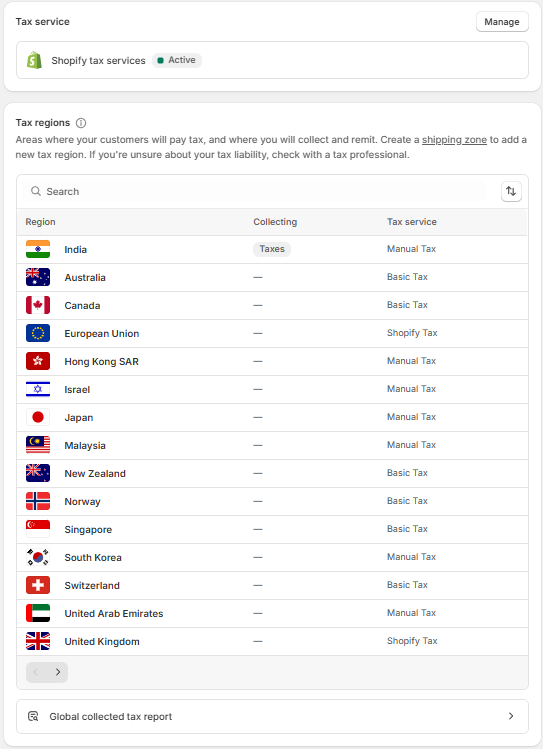
Shopify uses Tax Regions to determine where you have a tax collection obligation. Each region you add represents a jurisdiction where you will collect and remit tax. For each region, Shopify assigns a Tax Service:
Shopify Tax — Shopify's own automated tax calculation (available for EU and UK currently). Handles rate lookups and filing summaries automatically.
Basic Tax — Shopify calculates a fixed rate you provide. Suitable for simpler jurisdictions.
Manual Tax — You configure all rates yourself. Used for India's GST structure and other complex or manual regimes.
India GST Configuration
India's GST is a destination-based tax with rates that vary by product category (0%, 5%, 12%, 18%, 28%). In Shopify, you set up GST as a manual tax. The recommended workflow:
Go to Settings > Taxes and Duties > India.
Configure your base GST rate by product category or collection.
For interstate vs. intrastate IGST/CGST/SGST split, use a dedicated GST app like GST Pro (visible in the Apps section of your dashboard).
Ensure your GSTIN is registered in your billing details.
Duties and Import Taxes
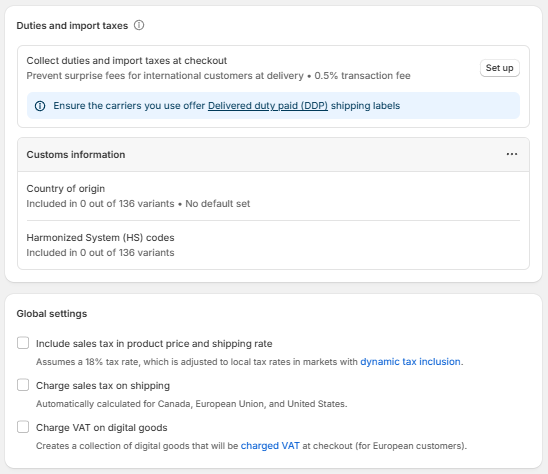
If you sell internationally, customers in other countries may face surprise import duties upon delivery. Shopify offers a 'Collect duties and import taxes at checkout' feature (0.5% transaction fee applies) that calculates and collects these fees upfront, eliminating the surprise.
To use this properly, you need to configure:
Country of origin — for each product variant.
Harmonized System (HS) Codes — international product classification codes used by customs authorities to determine duty rates. These need to be added per product category.
Global Tax Settings
Three important global toggles:
Include sales tax in product price and shipping rate — When enabled, the displayed price is tax-inclusive. Shopify dynamically adjusts shown prices based on the customer's location using an 18% assumed rate, adjusting to local rates in markets with dynamic tax inclusion enabled. Required for certain markets (e.g., EU, UK) where displaying prices inclusive of VAT is a legal requirement.
Charge sales tax on shipping — When enabled, tax is applied to the shipping amount as well as the product. Relevant for US stores (required in certain states) and some international markets.
Charge VAT on digital goods — Creates a collection that flags digital products for VAT purposes, required for selling digital downloads to EU customers.
5.5 Domains — Connecting Your Brand's Web Address
Your domain is your store's identity online. Shopify provides a free subdomain (yourstorename.myshopify.com), but every serious store should connect a custom domain.
Buying a Domain Through Shopify
Shopify sells domains directly at competitive rates. The advantage: DNS is configured automatically and instantly. No technical setup required. Renewal is handled through Shopify billing.
Connecting an Existing Domain — GoDaddy One-Click
If your domain is registered with GoDaddy, Shopify has a direct one-click integration. Inside Settings > Domains, click 'Connect existing domain', enter your domain name, and you will be prompted to log into your GoDaddy account. Shopify then automatically updates all required DNS records. No manual configuration needed.
Connecting Domains from Other Registrars
For domains from Namecheap, BigRock, Google Domains, or any other registrar, you update DNS records manually. The process:
Get your Shopify IP address and CNAME target from Settings > Domains > Connect existing domain.
In your domain registrar's DNS panel, delete any existing A records and create a new A record pointing to Shopify's IP (23.227.38.65 as of this writing, but always verify the current IP in your Shopify settings).
Create or update the 'www' CNAME record to point to shops.myshopify.com.
DNS propagation takes between a few minutes to 48 hours depending on the registrar and global DNS caches.
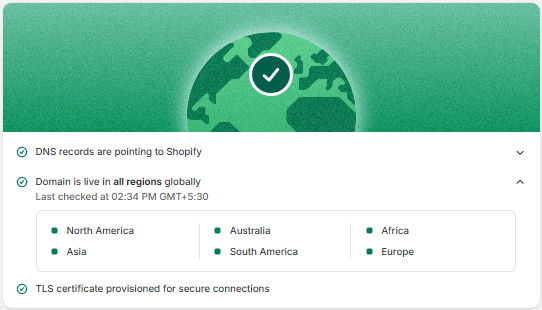
Once your domain is connected and DNS has propagated, Shopify automatically provisions a free TLS/SSL certificate (the padlock icon in browsers). You do not need to purchase or configure SSL manually. The confirmation screen shows 'TLS certificate provisioned for secure connections' when complete.
Primary Domain
Set your custom domain as the primary domain in Settings > Domains. Shopify will automatically redirect all traffic from yourstore.myshopify.com to your custom domain. This consolidates SEO equity onto one canonical URL.
PART 6 — Shopify Apps: Extending Your Store's Capabilities
Shopify was built for non-coders. This is its greatest strength and the source of an entire ecosystem of apps that fill in every gap. The Shopify App Store has over 8,000 apps spanning every conceivable function.
6.1 Understanding the App Ecosystem
Apps install directly into your Shopify store, some requiring theme code injection (which Shopify now handles through 'App Blocks' in the theme editor), and others operating entirely in the backend without touching your theme. Before installing any app:
Check the review count and average rating — look for apps with 100+ reviews above 4.5 stars for reliability.
Check the pricing model — some apps charge a flat monthly fee, some charge on usage, and some have a free tier. Understand exactly what you are paying before install.
Check the app's impact on page speed — some apps inject heavy scripts that slow your store. Use Shopify's built-in theme inspector or Google PageSpeed Insights after installation.
Only install apps you actively use — every installed app adds some overhead to your store, even if unused.
6.2 Essential App Categories for Every Shopify Store
Reviews and Social Proof
Customer reviews are the single most powerful trust signal in e-commerce. Apps in this category collect, display, and moderate product reviews.
AG Product Reviews — Popular in the Indian market with a clean interface and free tier.
Judge.me — The most widely used globally. Excellent free plan, automated review request emails, photo reviews, and SEO-rich snippets.
Yotpo — Enterprise-grade with deep analytics, but expensive for small stores.
Search and Discovery
Shopify's built-in search is basic. The Search & Discovery app (free, by Shopify) significantly improves search relevance, adds filtering by product attributes, and lets you pin or boost specific search results. For most stores, this is a must-install.
Conversion Rate Optimisation (CRO)
A broad category covering features that increase the percentage of visitors who make a purchase:
Sticky Add to Cart — Keeps the Add to Cart button visible as users scroll.
Urgency / Scarcity Timers — Countdown timers and low-stock alerts.
Recently Viewed Products — Helps customers return to items they viewed.
Trust Badges — Security seals, payment icons, and guarantee badges.
Exit Intent Popups — Triggered when a cursor moves toward the browser close button.
Upsell and Cross-sell
ReConvert — Post-purchase thank you page upsells. One of the highest ROI apps available.
Frequently Bought Together — Shows complementary products on the product page.
In Cart Upsell — Adds upsell offers inside the cart drawer.
Bundle apps let you create product bundles (buy 3 for a discount, build-your-own-box, etc.) without custom development. Shopify now has a native Bundle app as well, which integrates directly with inventory tracking.
Email and SMS Marketing
Klaviyo — The gold standard for e-commerce email and SMS. Deep Shopify integration, powerful segmentation, automated flows (welcome series, abandoned cart, post-purchase, win-back). Expensive at scale but industry-leading.
Omnisend — A strong alternative with a more generous free tier.
AiSensy (WhatsApp) — For the Indian market specifically, WhatsApp marketing outperforms email in both open rates and conversion. AiSensy integrates directly with Shopify to automate order confirmations, shipping updates, abandoned cart messages, and promotional broadcasts over WhatsApp Business.
GST and Tax Compliance (India)
GST Pro — Generates GST-compliant invoices automatically for every order. Handles IGST/CGST/SGST splits, B2B and B2C invoice formats, and bulk invoice downloads for filing. Non-negotiable for any Indian store selling to registered GST businesses.
Image and Product Display
Rubik Variant Images — Allows you to assign different images to each product variant (e.g., different colour images swap automatically when a customer selects a colour). Shopify has some of this natively now, but apps like Rubik handle more complex scenarios.
Swym Wishlist — Lets customers save products to a wishlist and returns them for purchase later.
Shipping and Logistics (India)
Shiprocket — The dominant logistics aggregator in India. Integrates with 25+ courier partners (Delhivery, Blue Dart, Xpressbees, etc.), provides automated AWB generation, tracking, weight discrepancy management, and NDR (Non-Delivery Report) workflows. One of the most critical apps for Indian D2C brands.
Pickrr / Eshipz — Alternatives to Shiprocket with similar functionality.
Landing Page Builders
Sometimes you need pages that go beyond what your Shopify theme supports — heavily styled sales pages, quiz funnels, or campaign-specific landing pages. Page builder apps handle this:
PageFly — The most popular page builder. Drag-and-drop interface with templates for product pages, home pages, landing pages, and more. Works with any Shopify theme.
GemPages — Strong competitor to PageFly with excellent mobile editing.
Shogun — Enterprise-focused page builder with A/B testing built in.
Analytics and Data
Microsoft Clarity — Free heat mapping and session recording tool. See exactly where users click, scroll, and drop off. Install this on day one.
Littledata — Fixes Shopify's Google Analytics 4 data gaps, particularly around server-side tracking.
Triple Whale — Advanced attribution and profit tracking dashboard for scaling stores.
GP JSON-LD Schema — Adds structured data (schema markup) to your product and collection pages automatically. This helps Google display rich snippets (star ratings, price, availability) directly in search results, improving click-through rates.
SEO Manager — Meta field management, image alt text automation, and sitemap control.
6.3 Managing Your Installed Apps
Go to Settings > Apps to see all installed apps. From here you can:
See which apps are currently active vs. inactive.
Review app permissions (what data each app can access).
Uninstall apps you no longer use — just deleting an app does not always remove its code from your theme. After uninstalling, check your theme code for leftover app snippets.
Manage app billing — each app's subscription is billed through Shopify, so all charges appear on your single Shopify invoice.
PART 7 — Themes: Building the Visual Store
Your Shopify theme is the design layer — it controls the look, feel, and layout of every page on your storefront. Shopify operates on a theme system where you can switch themes without losing your product data.
7.1 Free vs. Paid Themes
Free Themes
Shopify offers approximately 12 free themes. They are clean, well-coded, and fast. For stores just starting out or on a tight budget, the free themes — particularly Dawn (Shopify's flagship free theme) — are genuinely good options. Dawn is built on Shopify's modern OS 2.0 architecture and is highly customisable through the theme editor without touching code.
Paid Themes
Paid themes from the Shopify Theme Store range from $180–$380 as a one-time purchase (no ongoing fees). They offer more built-in features, more section options, and design differentiation. Popular paid themes used by Indian D2C brands include:
Impulse — Feature-rich, excellent for large catalogues with multiple collections.
Prestige — Premium, minimal aesthetic. Suited for lifestyle and luxury brands.
Motion — Includes video support and dynamic product displays.
Eurus — A newer theme with extensive built-in CRO features, reducing the app dependency.
Third-Party Theme Marketplaces
Themes are also available from third-party marketplaces like ThemeForest. Exercise caution: these themes are not reviewed by Shopify, may have slower update cycles, and can conflict with apps. Stick to the official Shopify Theme Store for reliability.
7.2 The Theme Editor — Your Visual Canvas
Go to Online Store > Themes and click 'Customize' to open the Theme Editor. This is a visual drag-and-drop interface where you build every page of your storefront. Key concepts:
Sections are the building blocks of every page. A header section, a hero banner section, a featured collections section, a testimonials section — all of these are individual sections that you can reorder, configure, and show or hide. Each section has its own settings panel on the left side of the editor.
Within sections, Blocks are sub-components. Inside a Featured Product section, blocks might include the product title block, price block, variant selector block, Add to Cart button block, and description block. Each block can be individually enabled, disabled, and reordered.
App Blocks
When you install apps that display content on the storefront (reviews, upsells, wishlists), they inject their interface through App Blocks. Inside the Theme Editor, you can place these App Blocks inside sections exactly like any other block, giving you visual control over where they appear without touching code.
Page-Specific Templates
The Theme Editor is not just for the homepage. In the page selector at the top of the editor, you can switch to:
Product pages — Customise the layout for individual products or create multiple product page templates for different product types.
Collection pages — Design how your product grids look.
Cart page — Customise the cart experience.
Checkout — Limited customisation on standard plans; extensive on Shopify Plus.
7.3 Theme Code — For Advanced Customisation
Every Shopify theme is built in Liquid — Shopify's proprietary templating language. For customisations beyond the theme editor, you edit Liquid files directly via Online Store > Themes > Edit code. Common developer customisations include:
Adding custom CSS for unique styling not achievable through the editor.
Modifying the product card layout in collection grids.
Adding custom JavaScript for interactive features.
Creating custom section or block templates.
PART 8 — Pre-Launch Checklist: Going Live the Right Way
Before you disable the password page and open your store to the world, go through this checklist systematically. Launching with avoidable errors damages first impressions and loses sales you cannot recover.
8.1 Store Configuration
Store name, address, and contact email are correct in General settings.
Store currency is set correctly.
Primary domain is connected and DNS is fully propagated.
SSL certificate is provisioned (green padlock in browser).
Password page is disabled.
Social sharing image is uploaded in Preferences.
Homepage meta title and description are filled in.
8.2 Products
All products have titles following the strategy (key spec + demand-driving feature + brand).
Descriptions are complete with features, benefits, and specifications.
All products have correct pricing including Compare At Price where relevant.
Inventory is set up and quantities are accurate.
Product weights are filled in for all shipping-relevant products.
All products have at least one hero image. Recommended 5-image format is in place.
Meta titles, descriptions, and URL handles are filled in for all products.
Variants are correctly set up with individual images where applicable.
8.3 Payments and Checkout
Primary payment gateway (Razorpay or equivalent) is active and tested.
COD is configured correctly with appropriate handling fee if applicable.
A test order has been placed and refunded to confirm end-to-end checkout works.
Payment capture method is set correctly for your fulfilment model.
8.4 Shipping
All shipping zones and rates are correctly configured.
Free shipping thresholds are set if applicable.
COD-specific rates are added if COD is offered.
Logistics app (Shiprocket or equivalent) is installed and synced.
8.5 Taxes
India tax region is configured with correct GST rates.
GST Pro (or equivalent) is installed and tested.
International tax regions are configured if selling globally.
8.6 Legal Pages
Privacy Policy page is published and linked in footer.
Refund and Return Policy is published and linked in footer.
Shipping Policy is published and linked in footer.
Terms of Service is published and linked in footer.
8.7 Navigation and UX
Main navigation menu links are all correct and working.
Footer navigation includes all policy pages and contact link.
All internal links across pages and products have been tested.
Mobile responsiveness has been tested on an actual device.
Page load speed has been checked (target: under 3 seconds on mobile).
8.8 Analytics and Tracking
Google Analytics 4 is connected and tracking events.
Meta Pixel is connected (if running Facebook/Instagram ads).
Microsoft Clarity is installed for session recording.
Google Search Console is set up and sitemap submitted.
PART 9 — Theme Code Architecture: Liquid, Sections & Blocks
This section is for anyone who wants to go one layer deeper than the Theme Editor — understanding what is actually happening inside the code, how Shopify's templating system works, and most importantly: how much you can accomplish with minimal coding knowledge, and how many paid apps you can replace entirely by writing a small amount of Liquid.
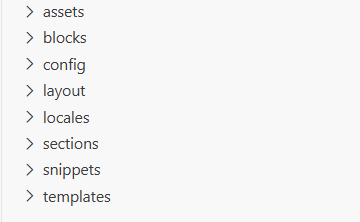
The image below shows the standard folder structure you see when you open 'Edit code' inside any Shopify theme. Every folder has a specific purpose, and understanding this architecture changes how you think about the entire platform.
9.1 The Folder Structure Explained
Each of the eight folders serves a distinct role. Understanding them removes the mystery from Shopify theme development:
Folder
What it contains and does
Static files: CSS stylesheets, JavaScript files, fonts, and images that are part of the theme itself (not product images). Every file here gets a permanent CDN URL. Your theme.css and theme.js live here.
Reusable block definitions — the sub-components that go inside sections. In modern OS 2.0 themes, blocks are defined here as standalone .liquid files, making them far easier to manage and share across multiple sections.
Two files: settings_schema.json defines the Theme Settings panel (the global settings like brand colours, fonts, and social links accessible from the Theme Editor). settings_data.json stores the actual saved values. You edit settings_schema.json to add new global settings fields.
The outermost wrapper for every page. theme.liquid is the master layout — it contains the <html>, <head>, and <body> tags, loads all CSS and JS, renders the header and footer, and outputs the page content via {{ content_for_layout }}. Every page on the store passes through this file.
Translation files in JSON format (en.default.json, hi.json, etc.). Every piece of text in the theme that should be translatable is referenced by a key (e.g. {{ 'general.cart.title' | t }}) and defined here. If you are building a multilingual store, you work in this folder.
The core building blocks of every page. Each .liquid file in this folder is a section that can be added to a page through the Theme Editor. Sections can have their own settings (schema) which appear as controls in the editor sidebar. This is where most customisation work happens.
Reusable partial templates — think of them as functions or components that sections call. A product card, an icon set, a price display, a star rating — these are typically snippets. You include them with {% render 'snippet-name' %}. They have no schema and cannot be added directly from the editor.
Page type templates that determine which sections load for each page type. product.json, collection.json, index.json (homepage), page.json — each defines the default section layout for that page type. You can create multiple templates per page type (e.g. product.alternate.json for a different product page layout).
9.2 What is Liquid? The Language Behind Every Shopify Theme
Liquid is Shopify's open-source templating language. It was created by Shopify's founder Tobi Lütke in 2006 and is now used across Shopify, Jekyll, Salesforce, and other platforms. The key thing to understand: Liquid is not a programming language in the traditional sense. It is a template language — its only job is to take data and output HTML.
There are three core Liquid constructs. Once you understand these three, you can read and write the vast majority of Shopify theme code:
1. Output Tags — Displaying Data
Double curly braces output a value. Whatever is inside gets rendered as text on the page:
Outputs the product's title
{{ product.price | money }}
Outputs price formatted as currency (e.g. ₹1,299.00). The pipe | applies a filter.
Outputs your store's name from Settings.
{{ section.settings.heading }}
Outputs the value of the 'heading' field from this section's Theme Editor settings.
The pipe character | applies a filter — a transformation on the value. Common filters: money, upcase, downcase, date, truncate, strip_html, img_url, url_encode.
2. Logic Tags — Control Flow
Single curly braces with percent signs contain logic — conditionals and loops. These never output text themselves; they control what gets rendered:
What it does
{% if product.available %} ... {% endif %}
Show content only if the product is in stock.
{% unless customer %} ... {% endunless %}
Show content only if the customer is NOT logged in. Unless = if not.
{% for variant in product.variants %} ... {% endfor %}
Loop through every variant of a product and output something for each one.
{% assign sale_price = product.price | minus: 100 %}
Create a variable. assign stores a value you can reuse below.
{% capture my_html %} ... {% endcapture %}
Capture a block of rendered HTML into a variable for later use.
{% render 'product-card', product: product %}
Include a snippet file and pass it a variable to work with.
{% paginate collection.products by 12 %} ... {% endpaginate %}
Split a collection into pages of 12 products each.
3. Comment Tags — Notes in Code
Anything between {% comment %} and {% endcomment %} is invisible to the browser. Use these to leave notes in sections explaining what a block of code does — essential when you come back to edit something three months later.
9.3 The Shopify Object Model — What Data You Have Access To
Liquid can only output data that Shopify makes available through its objects. Once you know what objects exist and what properties they carry, you can display almost anything. The most important objects:
product — The current product. Has .title, .description, .price, .compare_at_price, .images, .variants, .tags, .vendor, .type, .url, .metafields, .available.
collection — The current collection. Has .title, .description, .products, .image, .all_tags, .sort_by.
cart — The current shopping cart. Has .items (each with .product, .quantity, .price, .variant), .total_price, .item_count.
customer — The logged-in customer. Has .first_name, .last_name, .email, .orders, .default_address. Is nil (empty/false) when no one is logged in — use {% if customer %} to check.
shop — Global store data: .name, .email, .currency, .domain, .metafields.
request — Information about the current page request: .host, .path, .locale.
settings — All values from your Theme Settings (config/settings_data.json). Access like {{ settings.brand_color }} for any setting you have defined.
section — Data specific to the current section instance: .id (unique per section on the page), .settings (the values set in the editor for this section's schema), .blocks (the list of blocks added to this section in the editor).
block — Inside a for loop over section.blocks, this represents one block. Has .id, .type, .settings.
9.4 How Sections Work in Code
A section is a self-contained .liquid file in the sections/ folder. It has two parts: the HTML/Liquid template at the top, and a {% schema %} block at the bottom. The schema is what makes a section editable from the Theme Editor — it defines what settings and blocks appear in the sidebar.
Here is a minimal but complete custom section that outputs a configurable heading, text, and a button. This is the structure you follow for virtually every custom section you will ever build:
<!-- sections/custom-banner.liquid -->
<div class="custom-banner">
<h2>{{ section.settings.heading }}</h2>
<p>{{ section.settings.subtext }}</p>
{% if section.settings.show_button %}
<a href="{{ section.settings.button_url }}">
{{ section.settings.button_label }}
"name": "Custom Banner",
"settings": [
{ "type": "text", "id": "heading", "label": "Heading", "default": "Welcome" },
{ "type": "textarea", "id": "subtext", "label": "Subtext" },
{ "type": "checkbox", "id": "show_button", "label": "Show Button", "default": true },
{ "type": "text", "id": "button_label", "label": "Button Text", "default": "Shop Now" },
{ "type": "url", "id": "button_url", "label": "Button Link" }
"presets": [{ "name": "Custom Banner" }]
Once you save this file, it immediately appears as an addable section in the Theme Editor — complete with the text fields, textarea, checkbox, and URL picker you defined. No other configuration required. This is the entire loop from code to editor-ready section.
Schema Setting Types — What You Can Give Editors to Control
The type field in each settings object determines what input control appears in the Theme Editor sidebar. Here are all the types you will use regularly:
What appears in the editor
Single-line text input. Good for short labels, headings, button text.
Multi-line text area. Good for longer descriptions, subheadings.
A mini WYSIWYG editor with bold, italic, and link support. Outputs HTML.
An image upload/selector. The setting value is an image object — use | image_url filter to get the URL.
A colour picker. Returns a hex value like #FF5733.
Lets editors choose a colour scheme defined in your theme settings (brand-safe colour combinations).
A number slider with min, max, and step. Good for font sizes, padding, opacity.
A dropdown menu. You define the options array in the schema.
A true/false toggle. Use with {% if section.settings.id %} to show/hide elements.
A plain number input field.
A URL picker that lets editors choose any internal page, collection, product, or type a custom URL.
A field that accepts YouTube or Vimeo URLs and validates the format.
A product picker — lets an editor select any product from the store. Returns a product object.
A collection picker. Returns a collection object with all its products.
A blog picker. Returns a blog object.
A page picker. Returns a page object with .content and .title.
A font selector connected to the Shopify Font Library.
Not an input — renders a visual section heading inside the settings panel to organise controls into groups.
9.5 How Blocks Work in Code
Blocks are the repeatable sub-components inside a section. The best way to understand blocks is through an example: a Testimonials section where each testimonial is a block. The merchant can add as many testimonials as they want, reorder them, and remove them — all from the editor, with no code changes.
Blocks are defined in two places: in the section's schema (which declares what block types exist and what settings they have), and in the section's template (which loops through the blocks and renders each one). In modern OS 2.0 themes, blocks can also be defined as standalone files in the blocks/ folder — allowing the same block type to be reused across multiple sections.
<!-- sections/testimonials.liquid -->
<div class="testimonials">
<h2>{{ section.settings.title }}</h2>
<div class="testimonials__grid">
{% for block in section.blocks %}
{% if block.type == 'testimonial' %}
<div class="testimonial" {{ block.shopify_attributes }}>
<p>"{{ block.settings.quote }}"</p>
<span>— {{ block.settings.author }}</span>
"name": "Testimonials",
"settings": [
{ "type": "text", "id": "title", "label": "Section Title", "default": "What Our Customers Say" }
"blocks": [
"type": "testimonial",
"name": "Testimonial",
"settings": [
{ "type": "textarea", "id": "quote", "label": "Review Text" },
{ "type": "text", "id": "author", "label": "Customer Name" }
"presets": [{ "name": "Testimonials" }]
Notice {{ block.shopify_attributes }} on the block's div — this is critical. It injects the data attributes Shopify uses to enable live editing (clicking on a block in the editor highlights it in the preview and opens its settings). Always include it.
9.6 Metafields — Storing Custom Data Per Product
Metafields are custom data fields you can attach to any Shopify object: products, variants, collections, customers, orders, or the shop itself. They are one of the most powerful native features in Shopify and are the correct solution for any product data that does not fit in the standard fields.
Common use cases for product metafields:
Washing/care instructions — displayed in a dedicated tab on the product page.
Size guide content — rich text or a reference to a size chart file.
Ingredient list or material composition — for food, cosmetics, or textiles.
Country of manufacture — for customs compliance and brand storytelling.
Video URL — a product demonstration video linked per product.
Related products — manually curated list of recommended products for a specific item.
Certifications or badges — custom icons or text that appear on specific products (e.g. 'BIS Certified', 'FSSAI Approved').
Setting Up Metafields
Go to Settings > Custom data (or Metafields and metaobjects in some Shopify versions) > Products. Create a new metafield definition: give it a namespace and key (e.g. custom.care_instructions), choose a content type (text, rich text, URL, file, product reference, etc.), and save. The field now appears on every product page in the admin.
Displaying Metafields in Your Theme
Once defined, metafields are accessible in Liquid like this:
<!-- Plain text metafield -->
{{ product.metafields.custom.care_instructions.value }}
<!-- Rich text metafield (outputs HTML) -->
{{ product.metafields.custom.care_instructions.value }}
<!-- Only show if the metafield has a value -->
{% if product.metafields.custom.care_instructions != blank %}
<div class="care-tab">
{{ product.metafields.custom.care_instructions.value }}
9.7 What Apps Can You Replace With a Little Code?
This is the most commercially important question in this entire section. A lot of the Shopify app ecosystem exists because store owners do not know how to write even 10 lines of Liquid. Once you understand the basics, a significant portion of what you are currently paying for monthly becomes unnecessary code that takes ten minutes to write yourself.
Here is an honest breakdown, categorised by how much coding knowledge is required:
Replace Immediately With Zero or Near-Zero Coding Knowledge
These are configurations or copy-paste snippets where you do not need to understand Liquid — you just follow a pattern:
App Category
Native Shopify / Liquid equivalent
Shows a scrolling or static top bar with promotions
Built into most OS 2.0 themes natively as a section. Add it from the Theme Editor. No app needed.
Cookie Consent Banner
Displays a GDPR cookie notice
Enable in Settings > Customer Privacy. Shopify handles this natively with its built-in cookie banner. No app needed.
Adds a 'Notify me' button for sold-out products
Shopify has a native 'Back in stock' notification feature under Marketing > Automations. Enable it in 5 minutes.
Splits product description into tabs (Description, Shipping, Returns)
Create a custom section or modify the product template to render metafields in a tab-style div. One HTML/CSS snippet, no external app.
Keeps ATC button visible while scrolling
Most modern themes include this natively. If not, 10 lines of CSS (position: sticky) and a minor JS scroll event. No paid app required.
Displays payment icons and security seals
An image or SVG uploaded to your theme's assets folder, referenced in a snippet, and added as a block to the product section. Pure HTML, no app.
Shows a sizing guide on the product page
A metafield (image or rich text) + a small CSS modal. Define the metafield, add a button that triggers the modal with vanilla JS. Under 30 lines.
Batch-fills missing image alt text
Shopify uses the product title as default alt text already. For manual control, alt text is editable on every image in the product editor.
Replace With Basic Liquid Knowledge (The Scope of This Guide)
These require writing or modifying a section/snippet file — exactly the level of knowledge covered in this part of the guide:
App Category
How to replicate in Liquid
Build a section with blocks (as demonstrated in 9.5). Each block = one testimonial with quote and author fields. Merchant adds as many as needed. Styled with CSS. No app.
FAQ / Accordion Section
A section with blocks (question + answer per block). CSS for the collapsed/expanded state, two lines of JavaScript to toggle a class on click. Entire feature in under 40 lines.
A section with 3–5 blocks, each with an icon picker (image_picker type), a heading, and a short text field. Common on most homepages. Ten minutes to build.
Sale Badge on Products
In the product card snippet: {% if product.compare_at_price > product.price %} <span class="badge">SALE</span> {% endif %}. Zero new files — one line added to your existing snippet.
'New Arrival' Tag Badge
{% if product.tags contains 'new-arrival' %} <span class="badge badge--new">New</span> {% endif %} — add the tag 'new-arrival' in the product admin, badge appears automatically on collection pages.
Recently Viewed Products
Shopify's Search & Discovery app (free) adds this natively. If you want to build it yourself: store product IDs in localStorage via a 10-line JavaScript snippet on the product page, render them on cart or homepage using AJAX API calls.
Product-Specific Content (Care, Specs Tab)
Metafields (defined in Settings > Custom data) + an if block in the product template. If the metafield has a value, show the tab. If not, hide it. No app, no monthly fee.
Custom Collection Page Layout
Duplicate the collection template (templates/collection.json), assign it to specific collections, and configure different sections for those collections. No app.
Apps That Are Genuinely Worth Paying For
Honesty matters here. Not everything can or should be built yourself. These categories involve enough complexity, ongoing maintenance, or third-party infrastructure that the app cost is justified:
App Category
Why it cannot be simply replicated
Email / SMS / WhatsApp Marketing (Klaviyo, AiSensy)
These require their own sending infrastructure, deliverability reputation, opt-in list management, and campaign analytics. The value is the infrastructure and compliance, not just the UI.
Payment Gateway (Razorpay, PayU)
Requires PCI DSS compliance, banking relationships, bank-side integrations, and regulatory licensing. You are not building this.
Shipping Aggregator (Shiprocket)
Integrates with 25+ courier APIs simultaneously, handles weight discrepancy disputes, provides NDR management, and negotiates bulk rates. The value is the network, not the software.
Advanced Reviews (Judge.me, Yotpo)
Automated email request sequences, photo/video review moderation, SEO rich snippets, cross-store syndication, and UGC management. The infrastructure and deliverability of review request emails alone justifies the cost.
Requires recurring payment infrastructure, dunning management (handling failed payments), and deep checkout modifications. Not a Liquid problem.
Complex Bundles with Inventory Sync
Requires backend logic that deducts from multiple product inventories simultaneously when a bundle is purchased. Shopify's native bundle app or a dedicated app handles this correctly.
COD Verification / Risk Assessment
Razor COD and similar apps score orders for fraud risk using ML models trained on delivery data across thousands of stores. The intelligence is the product, not the widget.
9.8 The Practical Learning Path
If you want to move from 'I understand Shopify' to 'I can build custom Shopify themes', here is the most efficient path that does not involve taking a formal course:
Install Dawn (Shopify's free reference theme) on a development store. Open Edit code and read it. Dawn is the best-documented Shopify theme that exists. Every pattern you will ever need is in there somewhere.
Make one small edit at a time. Change a font size in CSS. Add a conditional in a snippet. Move a block in a template. Each change that works builds your mental model of how the files connect.
Use the Shopify Liquid reference (shopify.dev/docs/api/liquid) as your active companion, not a study document. Look things up as you need them.
When you want to build something specific, search 'Shopify Liquid [what you want to build]' on YouTube. The Shopify Partner ecosystem produces excellent, up-to-date tutorials.
Join the Shopify Partners Slack community. It is one of the most helpful professional communities in e-commerce development.